|


|


|
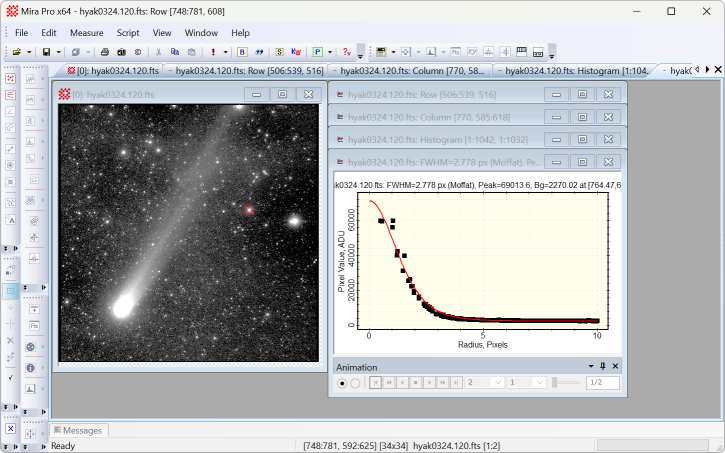
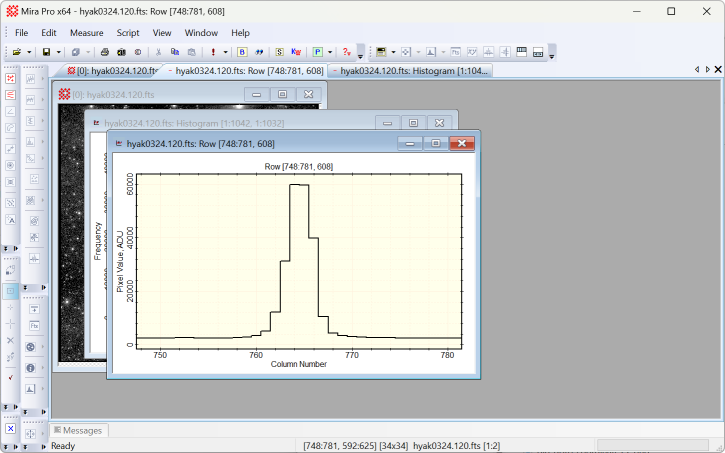
Stack Plots at Right The Stack Plots at Right command enables stacking of Plot Windows to the right of the Image Window that created them. When enabled, new plot windows are generated as small windows in a cascading stack up to 10 plot windows tall and 3 stacks wide. If not enabled, Plot Windows are opened in the general cascading stack as for other view windows. This command operates from the Plot menu for Image Windows and also from the Image Plot Properties dialog.
ExampleThe images below compare the effects of the Stack Plots at Right option. The top picture shows it enabled, causing Plot Windows to stack along the right border of their parent Image Window. If disabled, then Plot Windows open like all other view windows which cascade down from the upper left. Each Image Window has its own stack starting at its right and parallel to its top border.
Related TopicsImage Window Keystroke Commands
Mira Pro x64 8.83 User's Guide, Copyright Ⓒ 2026 Mirametrics, Inc.
All Rights Reserved. |