|
Open FITS File
The Open FITS File command opens one or more
FITS files into one or more
Image Windows. This function can open a classic FITS
file containing one Header-Data Unit ("HDU") containing a
2-dimensional image in addition to FITS extension files with more
than one HDU, an HDU containing a "data cube" image array with
NAXIS > 2, or a
File List containing such files. If a FITS file has
multiple HDUs or an HDU's with NAXIS >
2, then the
FITS File Summary window is called for selecting the
components to open. Also see the standard
Open command, which has some limitations on opening
FITS files.
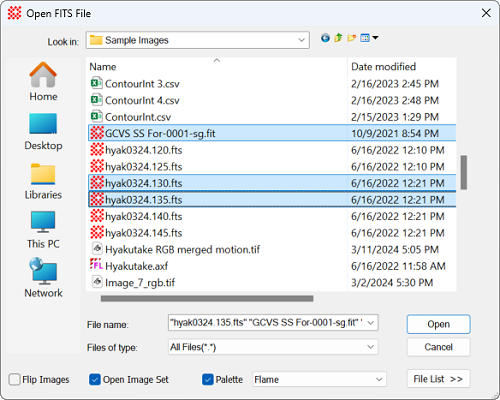
Open FITS File Properties
|
 Flip Images Flip Images
|
Check this box to flip FITS format images so that
row number increases downward, in the way computer displays are
scanned top to bottom. The FITS format standard states that arrays
stored in FITS files shall be displayed with row number increasing
upward. However, many FITS format applications expect row number to
increase in the top-down order. Check this box if the image being
opened shall be displayed in top-down ("flipped") order.
|
|
Open Image Set
|
Check this box to create an
Image Set when opening more than one image or image
component. This selection applies to the following situations:
-
Opening multiple FITS files.
-
Opening one or more FITS Extension files
containing multiple HDUs.
-
Opening one or more HDUs that are a "data cube"
with NAXIS > 2.
If checked, all components are opened as an
image Set in a single
Image Window.
If unchecked, each HDU and data plane is opened
into a separate
Image Window.
|
|
Palette
|
Check this box to open the image or images using
one of the palettes. If unchecked, the grayscale palette is used as
a default. The palette selection includes all defined palettes. New
palettes can be created using the
Palette Properties dialog.
|
|
[File List >>]
|
Opens the
File List Editor to create a
File List when more than one file is selected. You
may also use this command to directly edit a
File List when an axf
file is selected.
|
|
[Help]
|
Click this button to open "Topic Help" for the
Open FITS File command.
|
Example
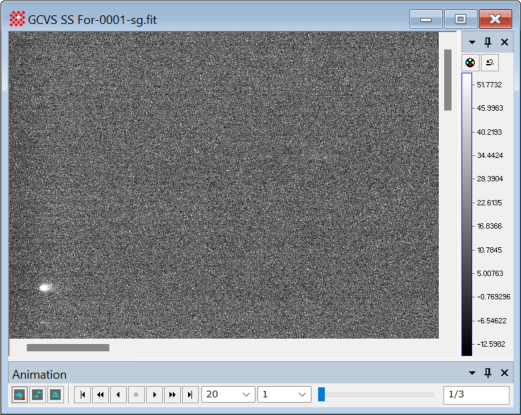
The following screenshot shows the result after
selecting 3 FITS files using the Open FITS FIle dialog with
Palette unchecked. In this case,
Mira applies the default grayscale palette.
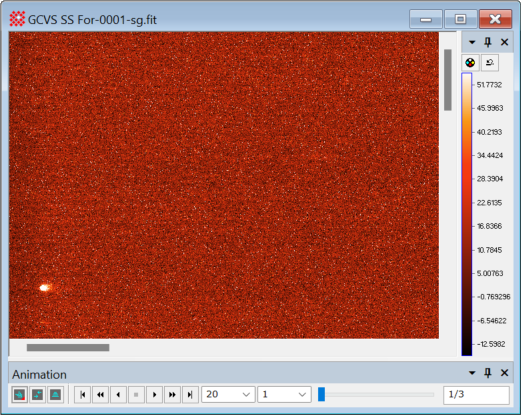
This screenshot shows the same images opened with
Palette checked and the Flame palette
selected.
Related Topics
Open command
FITS Format Overview
FITS File Summary
View and Search FITS Header
Image Windows
Image Sets
Working with File Lists
Opening & Saving Files
Create Image Keyword List
Mira Pro x64 8.83 User's Guide, Copyright Ⓒ 2026 Mirametrics, Inc.
All Rights Reserved.
|


