|


|


|
Script Manager Pane This docking pane attaches to image windows, plot windows, and report windows to create, open, and execute scripts directly from the view window. Although this tool's intended use is to run scripts directly on the data in the window, the script may also run independent of the displayed data. This pane maintains a drop list of scripts added to it, making it easy to select different scripts and switch between them. This script manager provides one of several ways to run a script in Mira. Scripts may also be executed using the [!] button on the top, main toolbar and the Execute Script command from a view window's (right-click) Context Menu. Report Windows contain grid controls the same as many measurement panes and grid dialog commands. Of these various implementations of the grid control, only the Report Window is a true view window that hosts a Script Manager Pane. For grid dialogs and measurement panes, scripts may be executed using the Execute Script command from their (right-click) Context Menu.
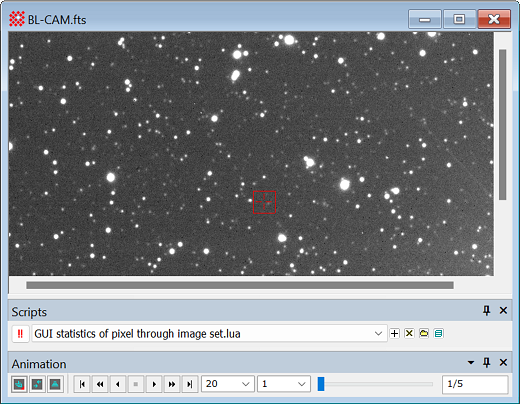
The picture below shows the Script Manager Pane with an Image Window script.
Using the Script ManagerThe Script Manager Pane maintains a history list of scripts that you have loaded into it. The current, or active script is shown in the text field of the list box.
Scripts may also be viewed, edited, and executed using the Script Editor. Related Topics
Mira Pro x64 8.83 User's Guide, Copyright Ⓒ 2026 Mirametrics, Inc.
All Rights Reserved. | ||||||||||||