|
Image Set Options
Almost all Mira Image Windows and command dialogs
allow you to work with an
Image Set as easily as with a single image. But
oftentimes you may want to apply some command or procedure to only
one image of the image set. For example you might want to measure
statistics on only one of the 10 images displayed in an
Image Window. You need a way to select whether an
operation is performed on one image or on all images,
and you need to be able to determine the current setting. Mira
solves these problems by keeping track of 3 internal status
Options: one for processing image sets, another for measuring image
sets, and a third one for plotting image sets.
Using Image Set Options
Image Set Options are used by Mira in each
Image Window and as defaults for new windows. This software design
lets you set default behavior for displaying new images and then to
change the behavior inside each Image Window. When a new Image
Window is opened, it inherits the default setting; at any time
afterwards, you can change the behavior of each individual window.
As you learn to use Mira you will discover the value of this
capability when working with images. Here is how this works:
|
Global and Local (Window) Image Set
Options
|
|
Global Options
|
Global Options are inherited as the default
properties for each new Image Window. The global settings are
changed using the Default Image Window dialog.
|
|
Local Options
|
Initially, the default Options are also the local
Options for each new
Image Window. To change the Local option settings,
use the buttons on the
Image Bar, the
Image Set Toolbar, or use a menu command.
|
|
Image Set Options
|
|
Process Image Set
|
Controls operations that affect pixel values, such
as image arithmetic commands, listing header keywords, and also
when adjusting the
Transfer Function.
|
|
Measure Image Set
|
Controls operations that make measurements such as
Centroid and
Statistics.
|
|
Graph Image Set
|
Controls commands that graph or plot data from the
image window, such as
Column Profile Plot.
|
Toolbar Buttons
The
Image Bar has 3 buttons that indicate the state of
the Image Set Options for that particular window. These buttons are
mirrored by buttons on the
Image Set Toolbar.
|
Image Bar Buttons for Local Image Set
Options
|
|

|
Sets the local Process Image Set option for the
window.
|
|

|
Sets the local Measure Image Set option for the
window.
|
|

|
Sets the local Graph Image Set option for the
window.
|
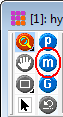
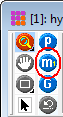
The state of the Options is indicated by the
buttons as shown below for the Measure Image Set button
circled in red:
|
|
|
|
Image Set Mode for measuring all
images.
|
Single Image Mode for measuring a single
image.
|
Changing the Local Image Set Options
There are several ways to set or change the local
Image Set Options. When an image window opens, it inherits the
Options from the Default Image Window properties. These values may
be changes for the current image window using the Image Bar buttons
or the
Changing Default Image Set Options
-
Open the
Image Window
Properties dialog using the View >
Default Settings > Default Image Window command.
-
Check or uncheck the Process,
Measure, or Graphing options as desired.
-
Save your changes to the profile or to a new
profile.
Changing Local Image Set Options for the Window
Select the Image Window of interest. Then use one
of the following, equivalent methods to change the Options:
From the Image Bar or Image Set Toolbar:
-
At the top of the Image Window is the
Image Bar. Buttons for these Options are located on
the right end of the toolbar (and at the top of the
Image Set Toolbar).
-
Click the Process,
Measure, or Graph buttons to set the desired state. You can
tell the current state by letting the mouse hover over the button
until the Tooltip appears. If the button is pressed (blue), image
set will be processed, measured or plotted. If the button is out
(black), only the active image will be processed, measured, or
plotted. The state of the Options is indicated by the buttons as
shown below for the Measure Image Set button circled in
red:
|
|
|
|
|
|
Image Set Mode for measuring all
images.
|
Single Image Mode for measuring a single
image.
|
From the Image Context Menu:
-
Right click on the image to open the Image
Context Menu.
-
At the bottom, select the Image Set command. If an image set is displayed,
the 3 Options will be enabled and can be set.
Related Topics
Image Sets
Image Windows
Image Set Toolbar
Image Bar
Image Keys Pane
Mira Pro x64 8.83 User's Guide, Copyright Ⓒ 2026 Mirametrics, Inc.
All Rights Reserved.
|


