|
Image Bar
The Image Bar is a command center for
Image Windows. This
docking pane provides user interface connections to
frequently used display tools, It also shows brief image
information and the coordinates of the mouse pointer as it moves
over the image. The Image Bar can be quickly displayed and
hidden using its button on the
Docking Panes Toolbar. The new docking
pane-based Image Bar and the old fixed-layout Image
Toolbar can be selected using the checkbox in the
General Properties dialog.
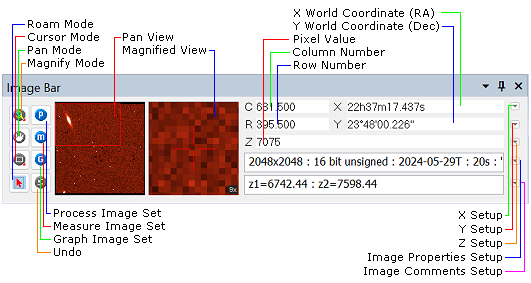
The Image Bar provides handy access to functions
that are also available in menus and toolbars, so you may choose to
hide the Image Bar to save space. The controls on the Image
Bar are organized into the groups described below.
|
Control Groups of the Image Bar
|
|
Command Modes
|
The left-most column of the toolbar buttons are
used to adjust the image magnification, panning, image cursor, and
the default (arrow) mode which disables the other 3 command
modes.
-
Magnifier mode
button: This uses the magnifier icon. A triangle below and
right of the magnifier indicates that this button has both a
left-click and right-click function. Right-clicking opens a
magnification menu.
-
Cursor mode button:
This button activates image cursor. A triangle below and right of
the cursor icon indicates that this button has both left-click and
right-click functions. Right-clicking opens a menu of cursor
functions. To toggle into and out of Cursor mode, see the
Ctrl+A keyboard shortcut in the
Accelerators table for
Image Windows.
-
Pan mode button:
This button allows you to drag the image around the window.
-
Roam mode button:
This button deactivates all command modes, including those of open
toolbars.
|
|
Image Set Options
|
The top 3 buttons in the second button column
control multi-image capabilities for image sets (processing,
measuring, and graphing).
-
Process: Controls whether one image or the
image set is processed by a command (e.g.,
Rotate Image).
-
Measure: Controls
whether one image or the image set is measured by a command (e.g.,
Region Statistics).
-
Graph: Controls
whether one image or the image set is graphed by a command (e.g.,
Histogram Plot).
When set to single-image mode, the button shows a
small "1" to the right of its letter.
|
|
Undo
|
The bottom button in the second button column
provides an
undo for the last processing that changed the
image.
|
|
Image Coordinates
|
Mira displays image coordinates in both array
units (column, row) and
world coordinate system units such as
cm, microns, (RA,
Dec), etc. If the image has no world
coordinate calibration, then the world coordinate fields duplicate
the (column,row) fields.
|
|
 X Axis
Setup X Axis
Setup
|
Opens the
Set X-Axis Linear Format dialog to change the
coordinate format when the X coordinate
has a
World Coordinate System calibration in linear
unit like km ormicrons.
|
|
Y Axis
Setup
|
Opens the
Set Y-Axis Linear Format dialog to change the
coordinate format when the X coordinate
has a
World Coordinate System calibration in linear
unit like km ormicrons.
|
|
Z Value
Setup
|
Opens the
Set Pixel Value Format dialog to change the
display of pixel (Z) values. If the
header has brightness units (the
BUNITS keyword), then these units are listed with the
pixel value.
|
|
Image
Properties Setup
|
Opens the
Select Image Properties window for changing the
information displayed in the Image Bar.
|
|
Display
Comments Setup
|
Opens the
Select Comment Properties window for changing
how image display comments are shown in the Image Bar.
|
Related Topics
Image Windows
Image Window Properties
Select Image Properties
Docking Panes
User Interface
Image Set Toolbar
Animation Bar
Image Cursor Toolbar
Mira Pro x64 8.83 User's Guide, Copyright Ⓒ 2026 Mirametrics, Inc.
All Rights Reserved.
|


