|


|


|
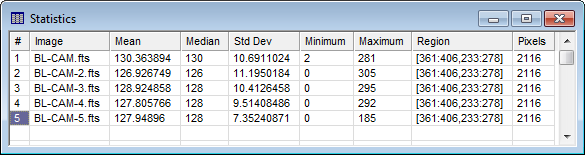
Report Windows Report Windows (also called "Grid Windows") are a type of View window that contains a grid control. These windows list the results of measurements using a grid format. Grid Conrols are used in Report Windows, Measurement Panes, and Grid Dialogs. Of these presentations, a Report Window is a top level view window, whereas a Measurement Pane is the child of a top-level view window that contains a grid control. The Report Window properties can be changed using the Table Properties menu command. A typical Report Window is shown below.
Report Windows provide several commands for working with table data in the Grid Control. You can edit, sort, rearrange, and save the contents of the table. For Report Windows, the Report Window Menu and the Grid Context Menu contain commands for manipulating the tabular data. These are described in Grid Controls. You can control whether Mira prompts to confirm closing or saving a Report Window using the check list item in the General Properties dialog. Script InterfaceThe Mira Pro x64 Script language provides an extensive collection of script classes and functions that work with Report (Grid View) Windows and their embedded Grid Controls. In this description, note that a Report Window is a view window containing a grid control. There are other window types that contain a grid control, including Measurement Panes and dialog windows. The script language refers to a Report Window as a CGridView object, since it is a view window containing a grid. But scripts may also create dialog windows containing a grid control. The features described below work only with Report (Grid View) Windows. There are two ways a script can be attached to Report Window data:
When a direct script is executed, it is automatically provided both a CGridView script object attached to the Plot Window and a CGrid script object attached to the currently displayed grid. Scripts executed globally or from outside an Report Window, must use a script command to attach the target window and their data. From there, analysis can be done using the CLsqFit class, CStats class, and others. See the Mira Pro x64 Script User's Guide. When a new script is created from a Report Window using the Script Manager Pane, it is automatically sent a CGridView script object connected to the Report Window and a CGrid script object connected to the currently displayed Grid Control. Scripts executed outside a Report Window or other type of view window must attach the target windows to use their data.
When a script is executed directly from a Report Window, it must connect to the current window and data. To do this, the script calls attach_dridviewinternal() which returns script objects attached to the current grid and current report (grid view) window, as follow: G, V = attach_gridviewinternal() where the two returned objects are as follows: G is a CGrid script object attached to the current grid. V is a CGridView script object attached to the current report (or grid) window. When you create a new script directly from the Script Manager Pane in a Report (Grid) Window, Mira automatically inserts the following line: ParentGrid, ParentGridView = attach_gridviewinternal() In some of the sample scripts designed for direct execution from a Report Window, you may see two variables: PARENTGRID and PARENTGRIDVIEW. This means Mira already processed the attach_gridviewinternal function. In your own scripts, call attach_gridviewinternal().
Accelerator KeysAccelerators in the table below execute commands when a Report Window has focus. Report Window Accelerators
Related Topics
Mira Pro x64 8.83 User's Guide, Copyright Ⓒ 2026 Mirametrics, Inc.
All Rights Reserved. |