|
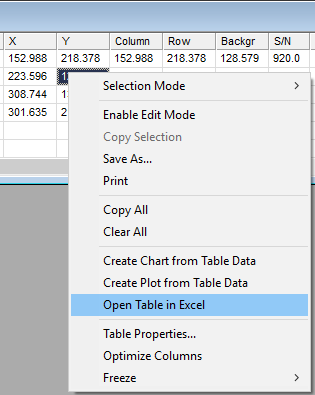
Grid Context Menu
|
|
Selection Mode
|
Sets the mode for selecting grid cells. You can
elect to highlight single cells or mark a range of cells.
|
|
Enable Edit Mode
|
Enables or disables editing mode.
|
|
Copy Selection
|
Copies selected cell data to the Windows
clipboard. If Selection Mode is set
to "Multiple" or "Row", then only the highlighted cells are
copied.
|
|
Save As...
|
Opens a File Save dialog to save the grid
contents to a file. The Save dialog offers a choice of CSV (comma
separated) or TXT (tab separated) output.
|
|
Print
|
Prints the table data. For a large table it may be
better to use the Copy or Save command
and then use another application such as Microsoft Word to
utilize their more flexible printing options.
|
|
Copy All
|
Copies all grid data to the Windows clipboard.
|
|
Clear All
|
Clears the entire contents of the grid
|
|
Create Chart from Grid
|
Opens the
Create Chart from Grid dialog for creating a
scatter plot using the Chart feature.
|
|
Create Plot from Grid
|
Opens the
Create Plot from Grid dialog. Use this dialog
to create a graph of one column of table data against another
column of table data.
|
|
Open Table in Excel
|
Opens an instance of Microsoft Excel and creates a
Sheet containing the table data.
|
|
Table Properties...
|
Opens the
Table Properties dialog for setting the Table
Appearance plus options for printing and copying the grid.
|
|
Optimize Columns
|
Adjusts all column widths to the minimum necessary
to show all the grid data in each column.
|
|
Freeze
|
Opens a submenu for selecting the current row or
column to freeze or unfreeze. The freeze point sets the beginning
of horizontal and vertical scrolling which are useful for comparing
distant rows and columns to rows or columns earlier in the
grid.
|
Mira Pro x64 8.83 User's Guide, Copyright Ⓒ 2026 Mirametrics, Inc.
All Rights Reserved.