|


|


|
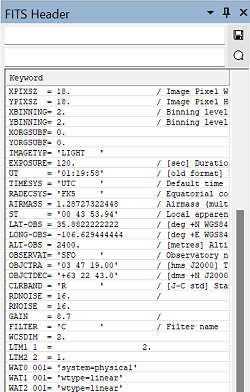
The FITS Header Pane displays the FITS Format header of the current image in a docking pane grid. In addition to viewing the header, you can edit keyword values and search for text strings in the header. Edits appear in the header listing as soon as they are "saved", but they become permanent ONLY after the is saved to a FITS file. See Editing the FITS Header and Related Topics, below, for alternative ways to view and edit the FITS header.
Changing Values in the FITS HeaderEach header line contains three items: a keyword, its value, and an optional comment. The value itself may be changed using the pane's top-most edit field and button. Double click on the target header value to load it into the text field, make the change, and use the [Save] button to replace the value in the header. When the FITS Header Pane opens the first time, the top-most text field gives the instruction "Double-click the value to change". This disappears after you double-click on the header. Procedure:
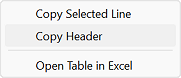
Copying the Header using Menu CommandsThe grid's popup-menu contains commands for copying the header data to various targets. Right-click the header to open the menu
FITS Header Color CodingSome header items may not be edited using this method. These disallowed items are shown with a light pink background. For example, the number of columns, indicated by NAXIS1, may not be edited but may be changed using a command like Expand Image. Keywords Added when Opening the FITS FileWhen a FITS file is opened, Mira changes or adds some keywords such as BZERO and BITPIX while the image is held in memory. To show the original values from the FITS file, Mira adds four COMMENT keywords at the end of the displayed FITS header (see below). The following four COMMENT lines are added in memory but are removed when the image is saved to a FITS file (note that the COMMENT values depend on the specific image):
COMMENT FITS file opened with SIMPLE = T COMMENT FITS file opened with BITPIX = 16 COMMENT FITS file opened with BZERO = 32768 COMMENT FITS file opened with BSCALE = 1 Related Topics
Mira Pro x64 8.83 User's Guide, Copyright Ⓒ 2026 Mirametrics, Inc.
All Rights Reserved. | ||||||||
 FITS
Header Pane
FITS
Header Pane