|
General Properties
The General Properties dialog sets
miscellaneous program properties.
NOTE: As for other dialogs, using the
Ctrl+R acelerator requires that the
interior of the Mira main window or a view window has the keyboard
focus.
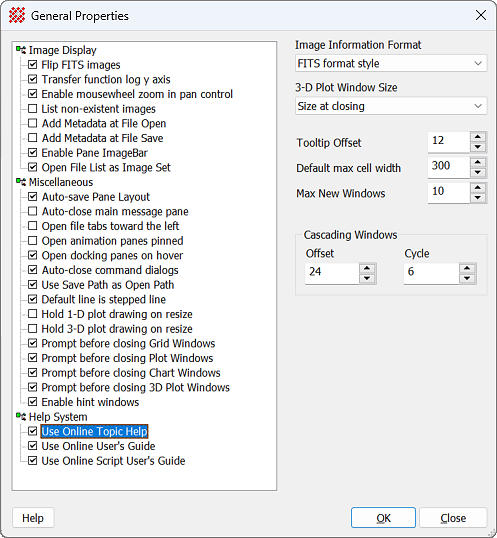
Checkbox Options
Image Display
|
 Flip FITS Images Flip FITS Images
|
If unchecked, FITS images are displayed in the
conventional way with row number increasing upward.
If checked, FITS images are displayed in the
unconventional way with row number increasing downward.
|
|
Transfer function log Y
Axis
|
Plots the logarithm of frequency on the Y axis of
the histogram in the
Transfer Function Pane dialog. Check this item
to enhance the appearance of low frequencies when the histogram
sample includes a small number of contaminating high pixels such as
stars.
|
|
Enable mouse wheel zoom in
pan control
|
Check this box to allow the mouse wheel to zoom
the image while the mouse pointer is moving over the Panning box in
the
Image Bar.
|
|
List non-existent
images
|
With this item checked, Mira announces every image
in a
File List that could not be found. Typically, this
unnecessarily wastes time, so leave it unchecked.
|
|
Add Metadata at File
Open
|
Apply metadata changes when the image file is
opened. The metadata settings are configured using
Add Metadata.
|
|
Add Metadata at File
Save
|
Apply metadata changes when the image file is
saved to a FITS format file. The metadata settings are configured
using
Add Metadata.
|
|
Enable Pane ImageBar
|
Check this box to enable the new
Image Bar docking pane. Uncheck the box to return to
the old Image Toolbar. A changed
setting takes effect when the next Image Window is opened.
|
|
Open File List as Image
Set
|
Sets the option for externally opening a
File List as an
Image Set when the file list is opened
"externally" from these actions:
The file is double-clicked in Windows
Explorer.
The icon is dropped onto Mira.
The File List is opened from the Recently User
files list This property affects ONLY to these operations.
|
Miscellaneous
|
Auto-save Pane Layout
|
Check this box to automatically save the window
pane layout to be saved when the window is closed. This setting
applies to panes of all view windows that use docking panes.
However, panes that list measurements are not persistent, and hence
are unaffected by this option. See
Docking Panes.
|
|
Auto-close Main Message
Pane
|
This controls the state of the
Main Message Pane at startup. If checked, the Main
Message Pane is automatically closed when Mira starts. If
unchecked, the Main Message Pane adopts its state when Mira
last closed.
|
|
Open file tabs toward the
left
|
If checked, tabs for new files are opened at the
left end of the tab row on the
Multi-Tab Interface. If unchecked, tabs are opened at
the right end of the tab row.
|
|
Open animation panes
pinned
|
Check this option to open the
Animation Bar closed and pinned to the window border
as an icon tab. If unchecked, the Animation Bar is opened fully,
exposing its controls, when an
Image Set is loaded.
|
|
Open docking panes on
hover
|
Check this box to instruct tabified
docking panes to open when the mouse hovers over the
tab. Otherwise, you must click the tab to open the pane.
|
|
Auto-close command
dialogs
|
Controls whether global
command dialogs automatically close after you click
[Process]. Modeless dialogs are
dialog windows that let you work outside them while they are
open
|
|
Use Save Path as Open
Path
|
Copies the last saved path into the default Open
path. Usually, you would leave this item checked.
|
|
Default line is stepped
line
|
Check this box to plot line graphs as a stepped
line. Otherwise, line graphs are drawn using a normal jagged line.
See
Plot Windows.
|
|
Hold 1-D plot draw on
resize
|
Check this box to delay redrawing a Plot Window
while being resized. For most plots this is desirable. However, you
may make a plot that has so many points in so many series that
Windows cannot keep up with re-drawing it during a plot Window
resize. In that case you can get back your user interface by
checking this item. With the Delay option enabled, Mira holds the
redrawing operation until after you have finished adjusting the
size of the window.
|
|
Hold 3-D plot draw on
resize
|
Check this box to delay redrawing a 3-D Plot
Window while being resized. This helps prevent loss of system
performance when you resize or move a window containing a large or
complicated 3-D plot.
|
|
Prompt before closing Grid
Windows
|
Check this box to force Mira to prompt you to
confirm that you want to close a
Report Window containing table data. The prompt also
gives you a chance to save the grid contents to a file.
|
|
Prompt before closing Plot
Windows
|
Check this box to force Mira to prompt you to
confirm that you want to close a
Plot Window.
|
|
Prompt before closing
Chart Windows
|
Check this box to force Mira to prompt you to
confirm that you want to close a
Chart Window.
|
|
Prompt before closing 3-D
Plot Windows
|
Check this box to force Mira to prompt you to
confirm that you want to close a
3-D Plot window.
|
|
Enable Hint Windows
|
Check this box to show a Hint Window for certain
interactive commands such as
Crop by Rectangle or
Align on Object.
|
Help System
|
Use Online Topic Help
|
Mira Topic Help uses a special version of the html
Mira Pro x64 User's Guide (see
Getting Mira Help) that permits individual
topics to be displayed.
|
|
Use Online User's
Guide
|
This checkbox selects the source of the Mira
User's Guide:
|
|
Use Online Script User's
Guide
|
This checkbox selects the source of the Mira
Script User's Guide:
|
Other Controls
|
Image Information Format
|
This list box lets you set the default format for
image information that is displayed by clicking  on an
Image Bar. Usually you would set this to FITS Format
so that intensity images show information in the
FITS Header dialog. RGB images have no FITS format
support, so information about RGB image is always shown in the
Image Information Editor dialog anyway. on an
Image Bar. Usually you would set this to FITS Format
so that intensity images show information in the
FITS Header dialog. RGB images have no FITS format
support, so information about RGB image is always shown in the
Image Information Editor dialog anyway.
|
|
Expanding Tooltip Offset
|
Sets the vertical offset, in screen pixels, of the
expanding Tooltip. The expanding Tooltip has a small triangle that
permits you to view more information by clicking on the tip text.
If you have trouble moving from the control onto the text without
crossing another control in between (which closes the text), reduce
the offset to move the pop-up tip text upward toward the control.
After clicking Apply or Save, you will need to re-open a particular
window to see the change take effect.
|
|
Default max cell width
|
Limits the initial width of grid cells when they
may contain very long character strings. For example, if the image
name is very long (say, 70 characters), the grid would normally
autoscale the image name column to hold all 70 characters at the
expense of other grid columns. This parameter affects only the
initial maximum width of a column, and the width may be adjusted
after the grid is displayed. A typical value for this parameter is
around 200 pixels. See
Grid Controls.
|
|
Max New Windows
|
Sets the maximum number of Image Windows to be
opened from a single
File List if not opened as an Image Set. Use this
option to prevent runaway accidental window opening for File Lists
containing many images.
|
|
Cascading Windows
|
These options control the offset of new document
windows when they are opened. Use this to control the use of screen
space. These settings apply to the following window types:
Image,
Plot,
Text Editor,
Script Editor.
|
|
Offset
|
The position offset between windows. This is the
distance right and below the previously opened window, measured in
screen pixels. In the window shown above, this is set to 12 screen
pixels. The Windows default is 24 pixels.
|
|
Cycle
|
Sets the number of offsets used before the next
window opens at the top left corner. In the picture shown above,
this is set to 8 cycles, meaning that the cascading positions of
new windows repeats every 8 windows.
|
Related Topics
Contents
Mira Documentation and Help System
Setting Application Properties
Image Windows
Mira Pro x64 8.83 User's Guide, Copyright Ⓒ 2026 Mirametrics, Inc.
All Rights Reserved.
|


