FITS File Summary
The FITS File Summary window shows information about FITS extensions and higher order data planes with NAXIS > 2. This window is opened from a FITS file opening command, such as Open FITS File, when the FITS file contains more than one HDU or an HDU with NAXIS > 2. An image having NAXIS > 2 is often called a "data dube," even if NAXIS = 4 or higher. Each row of the window lists data for each HDU, and each plane of an HDU having NAXIS > 2 is indicated by a checkbox near the right end of the grid. Note: This window is used by several commands, and it may not show all options in all instances.
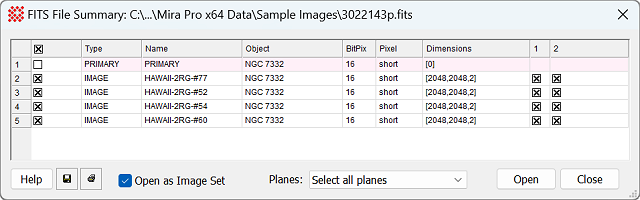
The picture above shows the FITS File Summary for an image having a primary HDU and 4 additional extension HDUs. The first HDU is a PRIMARY header that contains general file documentation and no data array. The other extensions each contain a data array with 2 planes. Since the leftmost box is checked for opening the entire HDU, the plane boxes do not need to be checked. Clicking [Open] results in displaying eight 2-dimensional images in an Image Window. Below are tips for using this window.
A PRIMARY HDU may or may not have a data array. If no data array exists, the Dimensions are listed as [0].
 To open a PRIMARY HDU having no data
array, check the box at the left of the grid to open it in a header
viewing window.
To open a PRIMARY HDU having no data
array, check the box at the left of the grid to open it in a header
viewing window.
To open a PRIMARY HDU having a data
array (or a classic FITS image having no extensions), check its box
at the left of the grid.
To select all HDUs and all their planes, tick the checkbox above the left column heading and choose Planes: Select all planes.
Specify which planes to open by choosing an option from thePlanes list box.
To select specific planes of a specific HDU, choose Planes: Select specific planes and tick the checkboxes for the target planes.
The FITS File Summary opens with all HDUs containing data checked.
If the Open FITS File dialog selects multiple images or a File List, the grid lists all images, HDUs, and planes.
The  Open
as Image Set option determines whether multiple HDU's and
planes are opened as an Image Set in one window or into separate windows.
Open
as Image Set option determines whether multiple HDU's and
planes are opened as an Image Set in one window or into separate windows.
|
Column Heading |
Column Contents |
|
|
Check this box in the heading of the left-most column to select all HDUs beyond the primary HDU. To select a specific HDU, check its |
|
Type |
The first (or only) HDU is listed as PRIMARY. For the second and higher HDU, the value of theXTENSION keyword is listed. |
|
Name |
The first (or only) HDU is listed as PRIMARY. For the second and higher HDU, the value of the EXTNAME keyword is listed. |
|
Object |
Lists the value of the OBJECT keyword. |
|
BitPix |
Lists the value of the BITPIX keyword. |
|
Pixel |
Lists the array pixel type indicated by the BITPIX keyword. |
|
Dimensions |
Lists the data array dimensions using the values of the NAXIS1,NAXIS2, NAXIS3, and higher keywords. |
|
1, 2, 3, ... |
Select planes to open by ticking |
|
|
Controls whether the selected HDU's (rows) are opened as an Image Set in a single Image Window. |
|
Planes: |
For HDUs with NAXIS > 2, this list specifies which planes to open. It does not appear if all HDU's have NAXIS = 2. The options are self explanatory, as follows:
|
|
Help |
Click this button to open "Topic Help" for the Mira Project Manager. |
Pixel Scale Sensitive FITS Keywords
Mira Pro x64 8.80 User's Guide, Copyright Ⓒ 2025 Mirametrics, Inc.
All Rights Reserved.